

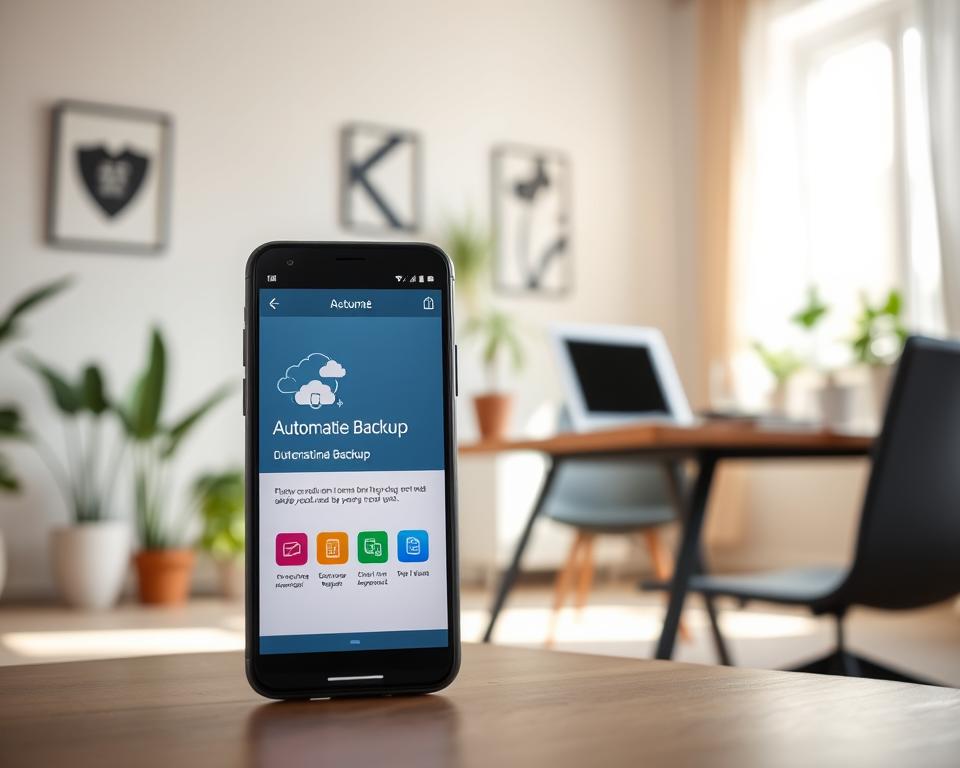
On Android 9 and later, your screen lock helps protect the key that encrypts backed-up data. This adds phone data protection through a feature many people overlook.
Phones store photos, videos, messages, and files that mistakes, damage, or theft can erase. An automatic phone backup setup keeps a copy ready for data recovery when needed.
Key Takeaways
- Automatic backups help protect personal files from loss.
- Backups can support data recovery after a phone is damaged or replaced.
- Android backup data is encrypted in transit and at rest.
- A screen lock can add protection to Android backups on newer devices.
- Check your backup settings to make sure your key data is included.
Check what you need to back up before changing your settings
Start your phone backup checklist by listing what matters most. Check your device for photos, videos, contacts, messages, and saved files. A backup helps only when it can restore the information you need.
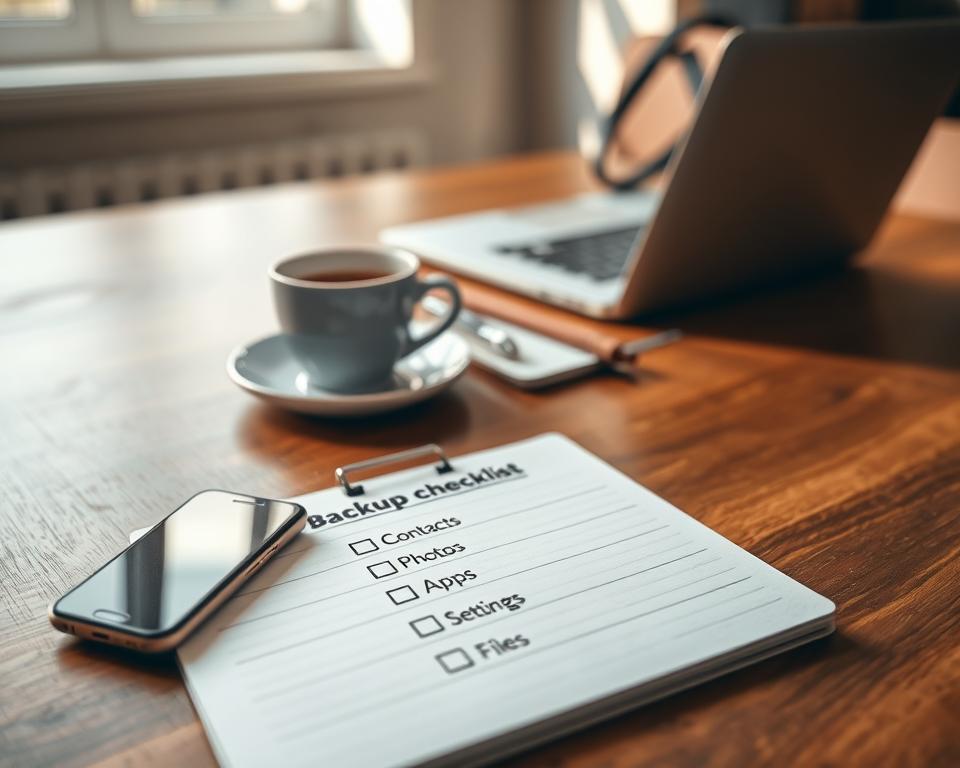
Keep one backup copy away from the original files. If both copies stay on one phone or drive, one failure could erase them together. A cloud account or separate drive can provide another copy.
Before choosing a service, check its cloud storage space, monthly cost, upload speed, and privacy settings. Strong account security supports sensitive data protection. Android backup options and security steps may vary by version and device maker.
| What to check | Why it matters | What to review |
|---|---|---|
| Important content | Some items may not be included in every backup. | List photos, videos, contacts, messages, and key files. |
| Separate copy | A single device failure could affect both copies. | Choose cloud storage or a separate drive for the backup. |
| Storage and cost | Full storage can stop new backups, and extra space may cost money. | Review the service limit, current use, and monthly price. |
| Privacy and settings | Backup features and protections differ by service and Android device. | Check account security and your phone maker’s backup options. |
Turn on automatic backup for an Android phone with Google One
On most Android phones, open Settings, tap Google, and choose Backup. Select the Google account you want, turn on backup, and tap Back up now to start copying. Menu names may vary by Android version and phone maker.
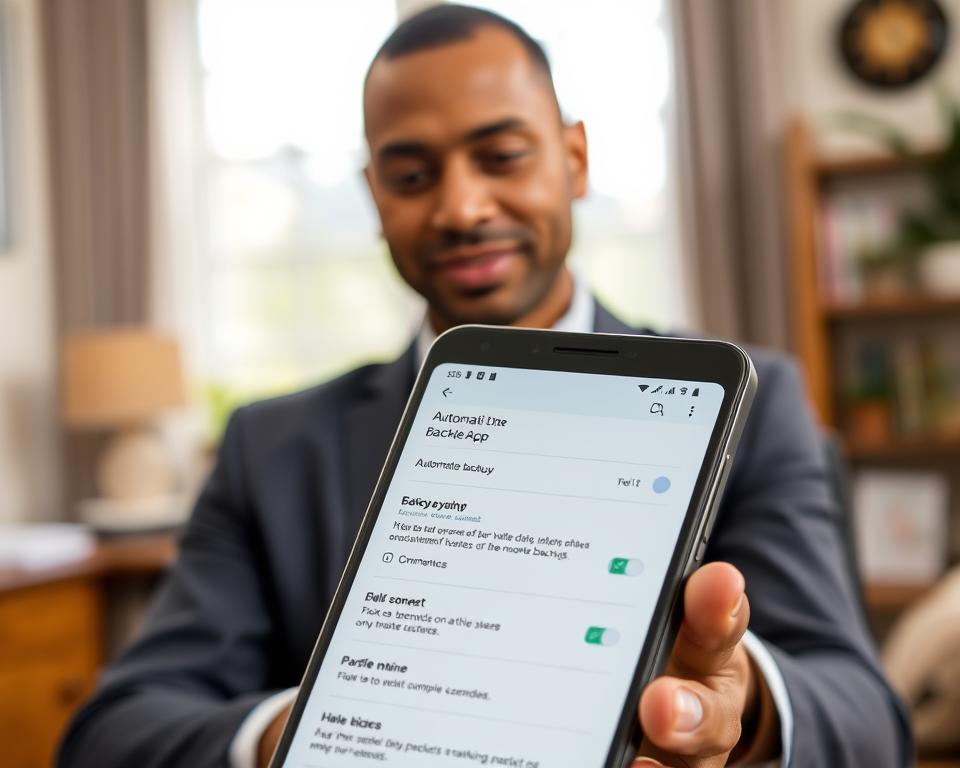
With Android automatic backup on, supported data can go to your Google account when you set up a new phone. Google One backup covers app data, call history, contacts, settings, and text messages. The saved items can vary by phone and app.
Backup data is encrypted while it moves and while it is stored. On Android 9 and later, a screen lock can protect the encryption key with a secret Google does not know. Google One storage is shared with Google Drive, so check your available space if backup fails.
Use Android’s built-in backup tools. Unusual methods that place app data in folders other apps can access may expose sensitive information.
Enable automatic iPhone backup through iCloud
On your iPhone, open Settings, tap your name, then tap iCloud and iCloud Backup. Turn on Back Up This iPhone. Your phone can make an automatic iPhone backup when locked, charging, and connected to Wi-Fi.
Check the last backup date on the same screen. For a fresh copy now, tap Back Up Now and keep your iPhone on Wi-Fi until it finishes.
Review your cloud backup settings and available iCloud storage. Storage limits, subscription costs, connection speed, and privacy terms can affect your choice. Keep a backup separate from the original files, so phone problems cannot erase both copies.
Save photos and videos automatically on Android and iPhone
Photos and videos can be hard to replace after a phone is lost or damaged. Automatic photo backup keeps a copy in the cloud, so you can restore files on a new device.
Back up Android photos with Google Photos
In Google Photos, turn on backup and choose the Google Account you want to use. Check your available storage first because free cloud space may not hold your full library.
Back up iPhone photos with iCloud Photos
On iPhone, open Settings, tap your name, then iCloud and Photos. Turn on Sync this iPhone. iCloud Photos stores your library in cloud photo storage, but changes can sync across devices. Deleted photos may disappear there too.
Restoring a large library can take time, especially with a slow connection. Wi-Fi and enough cloud space make photo and video protection easier to manage.
| Service | Where to turn it on | Check before use |
|---|---|---|
| Google Photos on Android | Google Photos settings | Google Account storage |
| iCloud Photos on iPhone | Settings, then iCloud and Photos | Available iCloud storage |
Include WhatsApp chats in your automatic backup
A WhatsApp chat backup preserves messages and media when you switch phones or reinstall the app. Choose a schedule that fits your needs, and check your cloud storage.
Set up WhatsApp backup on Android
Open WhatsApp and tap Settings, Chats, then Chat backup. Choose a Google account and backup frequency. For stronger sensitive app data protection, turn on WhatsApp’s end-to-end encrypted backup and store its password or key safely.
Set up WhatsApp backup on iPhone
In WhatsApp, open Settings, Chats, and Chat Backup. Tap Auto Backup and choose a schedule. Make sure iCloud Drive is on, and enable encrypted backup for added privacy.
A current backup can support WhatsApp conversation recovery. You’ll need access to the same cloud account and phone number.
| Phone | Backup location | Key setting |
|---|---|---|
| Android | Google account | Choose a schedule and encryption option |
| iPhone | iCloud | Enable iCloud Drive and choose a schedule |
Sync contacts, messages, and files separately when needed
Your phone may save contacts, chats, and documents in different places. Check each app’s sync or backup settings so you know what is protected and what needs a separate copy.
Keep contacts and calendars synced
Turn on contact synchronization with an account you use on your phone, such as Google or iCloud. Check that new contacts save to that account, not only to the device. A contact and calendar backup can help restore names, numbers, events, and reminders when you switch phones.
Messages may use separate settings. Check your phone’s backup options and apps such as WhatsApp to see what they save.
Back up important files and documents
Save key documents to a trusted cloud service or computer. An important file backup gives you another copy if your phone is lost or damaged.
Some Android apps can exclude sensitive data from backups. Android 12 and later use data-extraction rules; Android 11 and earlier use full-backup content rules.
A network-attached storage device can hold automatic copies from several computers, phones, and tablets. Check its access controls and confirm that the copies are current.
| Data | Where to check | What to confirm |
|---|---|---|
| Contacts and calendars | Google or iCloud account settings | Sync is on and the right account is selected |
| Messages | Phone backup and messaging app settings | Chats are included in a recent backup |
| Files and documents | Cloud storage, computer, or network storage | Important files have a separate, current copy |
Prevent backups from using mobile data or filling storage
Cloud backups can use a lot of data, especially with photos and videos. Check settings and choose Wi-Fi-only uploads to limit mobile data usage. Backups may take longer on slow connections, so use Wi-Fi and power when possible.
Before a backup, check how much cloud storage space it needs. Free plans may not hold a full phone copy, while paid plans can add a monthly cost. Review backup storage limits and remove old files you no longer need.
Check that your phone backup is running correctly
Open your phone’s backup settings and check the last backup date. A quick backup status check shows whether your data is current or needs attention. Confirm that contacts, photos, and app data are included.
Android decides which data gets saved under its backup rules. On Android 12 and later, cloud backups and phone-to-phone transfers may follow separate rules. Review both if you may switch devices, and verify phone backup settings with the right Google account active.
Think through data restoration before you need it. Check replacement-phone setup steps and estimate download time over your internet connection. This helps you know what to expect if your phone is lost or damaged.
Fix automatic backup when it stops working
Backups can stall when cloud space runs low or a slow connection interrupts uploads. To troubleshoot automatic backup, check storage and connection first, then review the phone’s backup settings.
Free up cloud storage and phone space
Delete old backups or unwanted files to free up cloud storage. Check Google One or iCloud for large items you no longer need. A phone low on space may struggle to prepare files for backup, so remove unused apps or downloads, too.
Check the account, connection, and backup settings
Confirm the phone is signed in to the right Google or Apple account. Use a steady Wi-Fi connection and make sure backup is on.
Android options vary by version. Android 12 and later use data-extraction rules, while Android 11 and earlier use separate full-backup rules. Apps with custom backup methods need regular testing because changes can affect how data is saved.
Keep your backup ready before losing or replacing your phone
A backup helps only when you can reach it after losing your phone. Keep an off-device backup of important photos, contacts, and files, and update it often. A copy stored only on your phone could disappear with the original.
For a phone replacement backup, check that your cloud or computer copy is current before switching devices. Consider privacy, storage limits, fees, and how long data restoration may take. Protect backup accounts with a strong password.
A network-attached storage (NAS) device can save files from several phones. Some NAS systems use two drives, so one copy may remain if a drive fails. For added protection, keep another copy in a separate location or data center.