

In a few taps, your phone can turn a paper page into a shareable PDF—no scanner required. Mobile document scanning works with everyday items, including receipts, bills, letters, and contracts.
To scan documents with your phone, use its camera and a built-in app. Save files on your device, Google Drive, or iCloud. You can open or share them from other devices, making it easy to digitize paper documents without extra gear.
Key Takeaways
- Your phone can scan paper documents without a separate scanner.
- Save scans as PDFs or image files.
- Store files on your phone or in the cloud.
- Scans are easy to access and share across devices.
Gather what you need before scanning
Use a flat surface and clean your phone camera lens. Remove staples and paper clips, then smooth wrinkles. Flat pages create fewer shadows and look less warped in the scan.
Check that the text is easy to read and the paper has no stains or tears. Use soft window light or a nearby lamp. Avoid direct light, which causes glare, and dim rooms, which hide text.
Good lighting and a steady page support clear phone scans and strong document image resolution. These steps help with everyday receipt scanning, especially when small print must stay legible.
Open the built-in scanner on your phone
Your phone may already include tools for scanning receipts, forms, or handouts. Steps vary by device, but iPhone and Android both let you scan documents with your phone.
Scan with the Notes app on an iPhone
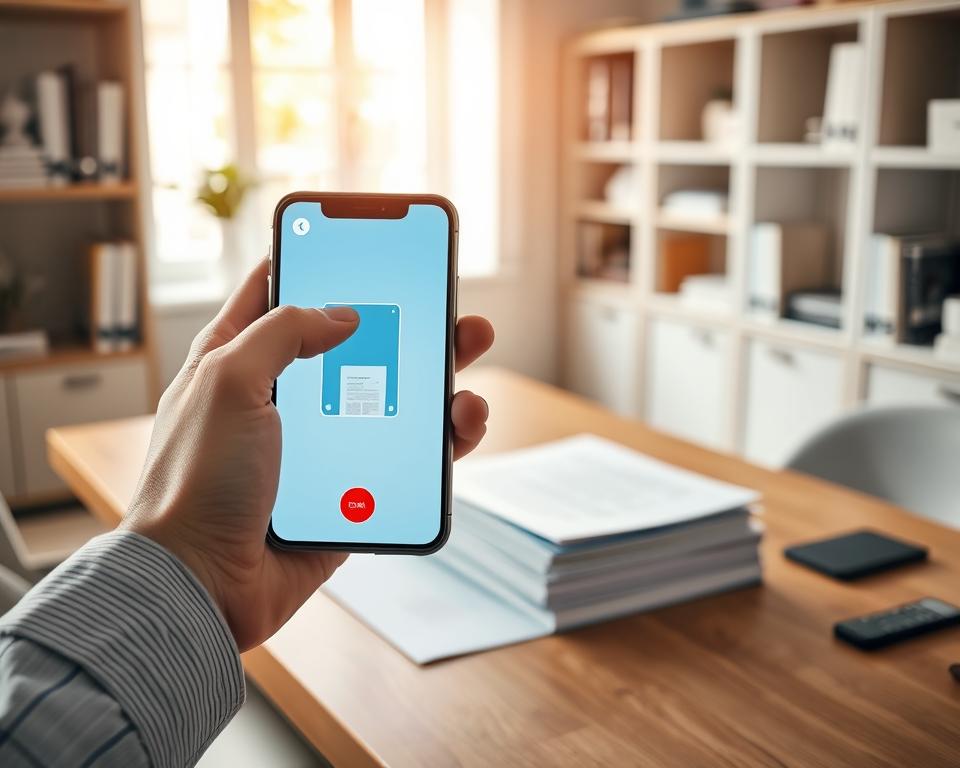
Open Notes and choose an existing note or create a new one. Tap the camera icon, select Scan Documents, and hold your iPhone over the page. In automatic mode, Notes takes the picture when it detects the page.
For a manual capture, tap the shutter button or press a volume button. Tap Save when finished, or keep adding pages. This built-in tool makes iPhone document scanning quick and easy.
Scan with Google Drive on Android
Use the Google Drive scanner by opening Google Drive and tapping the camera button. You can also tap Add, then choose Scan. Point your camera at the page and capture it; a blue outline shows the area Drive plans to crop.
Some Samsung phones can capture documents directly in the Camera app. If your phone lacks a built-in scanner, try Adobe Scan, Microsoft Office Lens, or CamScanner.
| Phone | Where to start | Capture tip |
|---|---|---|
| iPhone or iPad | Notes, then the camera icon | Use automatic capture or press a button to scan manually |
| Android | Google Drive camera button, or Add > Scan | Check the blue outline before capturing |
| Samsung | Camera app, if document capture is available | Look for the document capture prompt |
Set up the page for a clear scan
Set the page on a flat, plain surface. Hold your phone above it, with the camera pointing straight down. Good light helps prevent shadows and glare.
Move lamps or windows until the page looks evenly lit.
For clear document scans, keep the full page in view and avoid tilting the phone. The document image resolution depends on focus and lighting. DPI settings apply to scanner or printer workflows, not phone cameras.
| Scan type | Recommended setting | Best for |
|---|---|---|
| Scanner or printer | 300 DPI, black and white | Plain text documents with smaller file sizes |
| Scanner or printer | 600 DPI, color | Photos, graphics, signatures, or documents with color |
Capture one page or a full multi-page document
For a long file, scan each page in order. Google Drive lets you add pages before finishing. Retake or delete a page if it looks wrong.
In the iPhone Notes app, scan every page before tapping Save. This makes multi-page PDF scanning simple and keeps the pages together.
For two-sided document scanning, capture the front and back as separate pages. Check that both sides appear in the scan before saving.
Crop, rotate, and enhance the scanned pages
Review each page before saving, and crop scanned pages when needed. In Google Drive, use Crop and rotate to trim edges or fix page direction. On iPhone, adjust the corners in the Files app, then tap Keep Scan.
Try Filter to change colors or switch to grayscale. The Clean tool can remove marks and fingers, helping improve scan readability. If a page still looks off, retake it or delete it from the scan.
Save the finished scan as a PDF
Save PDF scans as a PDF when you need to submit an official document or keep several pages together. In Google Drive, choose PDF or JPG, name the file, pick a Drive folder, and tap Save. A clear name, such as Contract_2025.pdf, makes the file easier to find later.
On iPhone, use the Files app’s document scanning tool to save the scan on your phone. Choose a folder and give the file a useful name. For image copies, names like Electric_Bill_January.jpg help you spot JPG document scans at a glance.
JPG, JPEG, and PNG are image formats. A PDF keeps pages together in one document. Searchable PDF files may require OCR, which turns scanned text into text you can find.
| Format | Best for | Example filename |
|---|---|---|
| Official forms and multi-page documents | Contract_2025.pdf | |
| JPG | A single-page image copy | Electric_Bill_January.jpg |
Make the document searchable with OCR
Optical character recognition (OCR) reads scanned images and turns their words into searchable text. Without OCR, a scan may look like a page but act like a photo when you search for words.
Use OCR to create searchable PDF files from everyday papers, including receipts, letters, and billing statements. Google Drive can digitize these documents and save them as searchable PDFs, so you can find details later.
Share or upload the PDF securely
To share scanned PDFs, attach the file to an email or send it through WhatsApp. Check the recipient before tapping send, especially if the scan contains personal details.
For cloud storage, save a backup in Google Drive, iCloud, or Dropbox. In Google Drive, choose the folder for your scan and review its sharing settings.
Google says it does not use Drive content for advertising. Google Drive privacy still depends on who can access each file.
Keep a second copy on an external hard drive for extra protection. A backup gives you another way to find the PDF if you lose access to your phone or account.
Fix blurry scans, missing edges, and other common problems
Good document scan quality starts with a flat, smooth page and even light. These conditions help prevent shadows, glare, and bent lines. Before scanning, check that the text is clear and the page has no marks or damage.
If the scan shows the wrong area, use the crop tool to adjust scan edges. Google Drive lets you crop and rotate pages. To fix blurry document scans, steady your phone and retake each unclear page.
Review the saved file before you share it. Zoom in to check that the words are easy to read, because a low-quality scan can make small text hard to see.
Make phone scanning part of your everyday workflow
Give each scan a clear filename, such as “May rent receipt” or “Car insurance policy.” Use folders like Personal Documents, Work, and Bills to organize digital documents and find files later.
For quick receipt scanning on Android, add the Google Drive scanning widget to your home screen. Link it to a folder, or create a new folder during setup.
On iPhone, open a scan in Notes and tap Markup to add a signature. Choose a saved signature or create one, adjust its size, place it on the page, and tap Done. This can help with electronic form signatures.
Keep cloud backups turned on, or copy important PDFs to an external hard drive. This simple routine makes scans easier to find and safer if you lose your phone.