

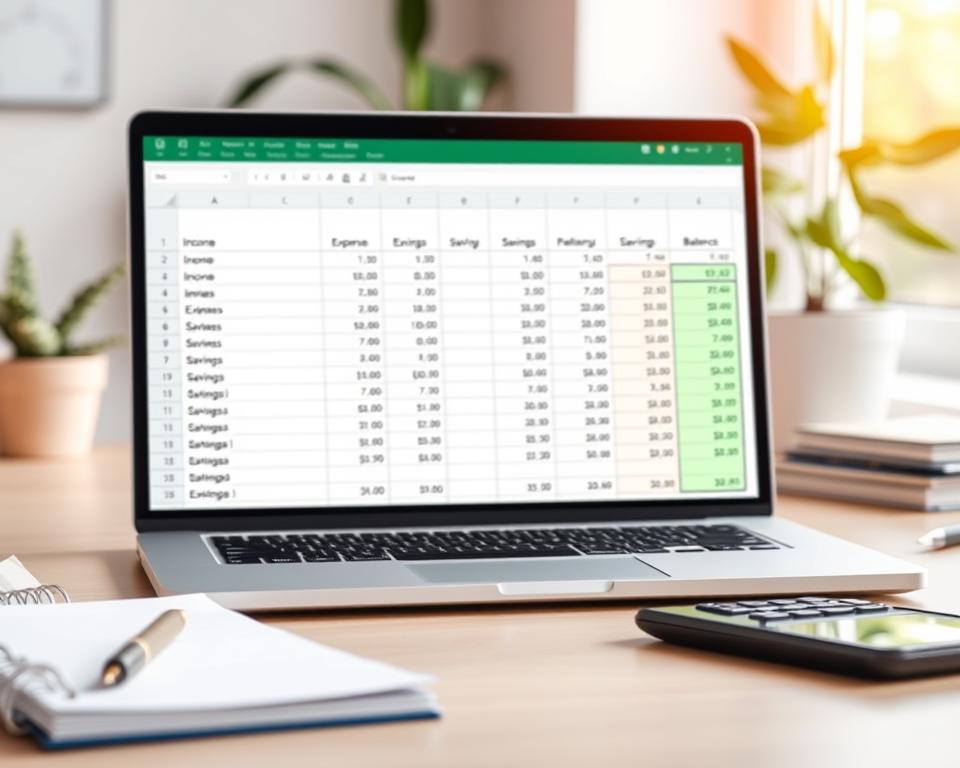
A monthly budget can do the math for you. Microsoft Excel templates use formulas to total income and expenses, so you can track your spending. Start with a simple monthly budget, then adjust its categories and amounts to fit your needs.
Excel offers personal, household, college, and simple monthly budget templates. You can save a plan, print it, or share it as a PDF. These budgeting basics can help you build a personal budget that feels clear and manageable.
Key Takeaways
- Choose an Excel template that fits your needs.
- Customize categories and amounts to match your life.
- Use built-in formulas to total income and expenses.
- Save, print, or share your budget as a PDF.
- Keep your personal budget simple and easy to review.
Decide what you want your monthly budget to control
A budget shows your income and expenses in one place. Choose whether to limit takeout, manage bill payments, or build savings. A clear goal helps you understand your personal cash flow.
A financial education source in Portugal found that many people could not remember their spending from the month before. Their estimates sometimes differed from actual spending by hundreds of euros. Tracking purchases replaces guesswork with useful facts.
Record money coming in and going out first. This simple habit builds financial awareness and supports better everyday money choices.
| What to control | What to record | What it can show |
|---|---|---|
| Flexible spending | Food delivery, shopping, and entertainment | Where small purchases add up |
| Monthly bills | Rent, utilities, and loan payments | How much income is already committed |
| Savings goals | Deposits made toward a planned goal | Whether your plan fits your personal cash flow |
Add up your reliable monthly take-home income
Begin with money deposited after taxes and payroll deductions. Add regular paychecks to find your monthly take-home income. Exclude bonuses and one-time payments so your budget uses dependable income.

For irregular earnings, use a cautious average from recent months. If income changes often, plan around a lower month. Good income tracking helps you spot patterns and avoid spending money that may not arrive.
A budget worksheet can track income and expenses by month and category. In the Kenki Explains template, enter each transaction’s date, amount, and type, with an optional description. The Month and Income/Expense columns fill in automatically.
| Income source | Sample monthly amount | How to count it |
|---|---|---|
| Regular paycheck after deductions | $3,200 | Include the amount you receive each month. |
| Freelance work | $450 | Use a cautious average based on recent months. |
| One-time bonus | $600 | Leave it out of regular income; record it when received. |
Review recent spending before setting limits
Review recent expenses before choosing monthly limits. Record each purchase as it happens to avoid forgotten costs. This spending tracking takes a little time each day.
For a faster review, check your bank statement or app once a month. Sort each charge, including cash purchases and frequent payment-app transfers through Venmo or Zelle. These costs can be easy to miss, so add them to your notes.
A spreadsheet such as Excel can help you keep a clear transaction history. Choose a method that feels easy to repeat, so your budget shows what you really spend.
Sort expenses into clear budget categories
Clear expense categories show where your money goes. Separate fixed and variable expenses from changing monthly costs.
Essential bills and everyday needs
Start with rent or a mortgage, utilities, groceries, transportation, and insurance. These bills meet basic needs, but some costs may change each month.
Flexible wants and subscriptions
Group hobbies, streaming services, and dining out together. Tracking these costs can reveal unused subscriptions and help you set realistic limits.
Debt payments and savings goals
List required debt payments, such as credit card or student loan bills. Give savings goals their own line so you can plan for each one.
A budget template tracks planned and actual amounts in each category. Stanford’s monthly budget template uses this approach, and some expense-tracking apps offer preset categories for groceries and utility bills. These apps also let you create your own categories. Excel templates can fit personal savings or college costs.
Set spending limits that fit your actual income
Base each limit on reliable take-home pay, not your best-case income. The 50/30/20 budgeting method offers a starting point, but your bills, goals, and needs should shape the final amounts.
Stanford’s monthly budget template lets you enter a planned amount for each category and record your spending. Excel budget templates use formulas to calculate totals and compare budgeted versus actual spending.
Review the difference during the month, not only at the end. If groceries run high, you might trim dining out or another flexible category. Keep monthly spending limits realistic, so your plan guides choices without leaving too little for bills or savings.
| Category | Planned | Actual | What to review |
|---|---|---|---|
| Rent | $1,200 | $1,200 | Keep the amount aligned with the lease. |
| Groceries | $400 | $430 | Check meal plans and store trips. |
| Transportation | $250 | $230 | Leave room for changing fuel or transit costs. |
| Dining out | $150 | $180 | Adjust this flexible limit if needed. |
| Savings | $300 | $300 | Protect the planned transfer. |
| Debt payments | $300 | $300 | Include required payments in the plan. |
| Utilities | $200 | $190 | Use recent bills to set the next limit. |
| Phone and internet | $100 | $100 | Check for changes in service costs. |
| Personal and subscriptions | $100 | $70 | Review unused services and purchases. |
| Total | $3,000 | $3,000 | Compare category differences before resetting limits. |
Plan ahead for irregular expenses
Some costs come once or twice a year, while others appear without warning. Set aside a small amount each month so these bills do not disrupt your budget.
Annual and seasonal bills
List costs such as insurance premiums, holiday spending, and school supplies. Microsoft Excel offers annual budget templates to help plan these expenses. Use recurring payment reminders for loan and card payments, too.
Emergency savings and short-term goals
Build an emergency fund for urgent costs, such as car repairs or a sudden medical bill. Set separate savings goals for near-term plans, like travel or a new appliance.
Stanford’s balance sheet template can help you review bank accounts, investments, vehicles, homes, debts, and loans. Check it once or twice a year to see how your finances change.
Choose a simple format for your budget
Choose a format you can update easily. A financial tracking spreadsheet helps you sort expenses, change categories, and review totals in one place.
In Excel, open an Excel budget template and replace the sample labels and amounts with your own. Save or print the file, or share it as a PDF. Excel can import data from tables and PDFs, saving time when you already have records.
A Google Sheets budget is easy to edit on different devices and share with a partner. Start with a blank sheet or ready-made layout, then keep categories simple.
Free spreadsheet examples are available from CatPoupança, Kenki Explains, Stanford University, and My Online Training Hub. Compare a few layouts and choose one that fits how you track spending.
| Format | Useful for | What to consider |
|---|---|---|
| Excel budget template | Custom categories, formulas, and printable files | Save updates to the right file so you use the latest version. |
| Google Sheets budget | Editing and sharing across devices | Make sure shared access fits your privacy needs. |
| Blank spreadsheet | A layout built around your own spending habits | Keep the setup simple to make weekly updates easier. |
Track spending and adjust the plan each week
Record income and expenses by category as they happen. This spending tracking habit helps you find a tight category early and adjust before the month ends.
The CatPoupança template sets a monthly limit for each category and lets you review activity by week or month. It has no annual view, so use it to focus on near-term spending.
During a weekly expense review, compare actual costs with each limit. An expense-tracking app can show your current balance and chart income and spending patterns.
It can also create budget reports by date range or transaction category. Sort entries by date or amount to find a charge quickly.
Repeat a quick monthly budget check-in to stay on track
Set aside a few minutes each month to compare your plan with your spending. A monthly budget review shows where costs rose and where you can adjust.
Track income and expenses for at least three months to spot patterns. In Your Money or Your Life, Vicki Robin asks readers to examine how they use money. That record can help you set spending limits and keep your savings goals in view.
Use bank statements or your banking app for a monthly check. If you prefer, record purchases each day while they are fresh. Choose a method you will keep using; budget consistency matters more than a complex template.