

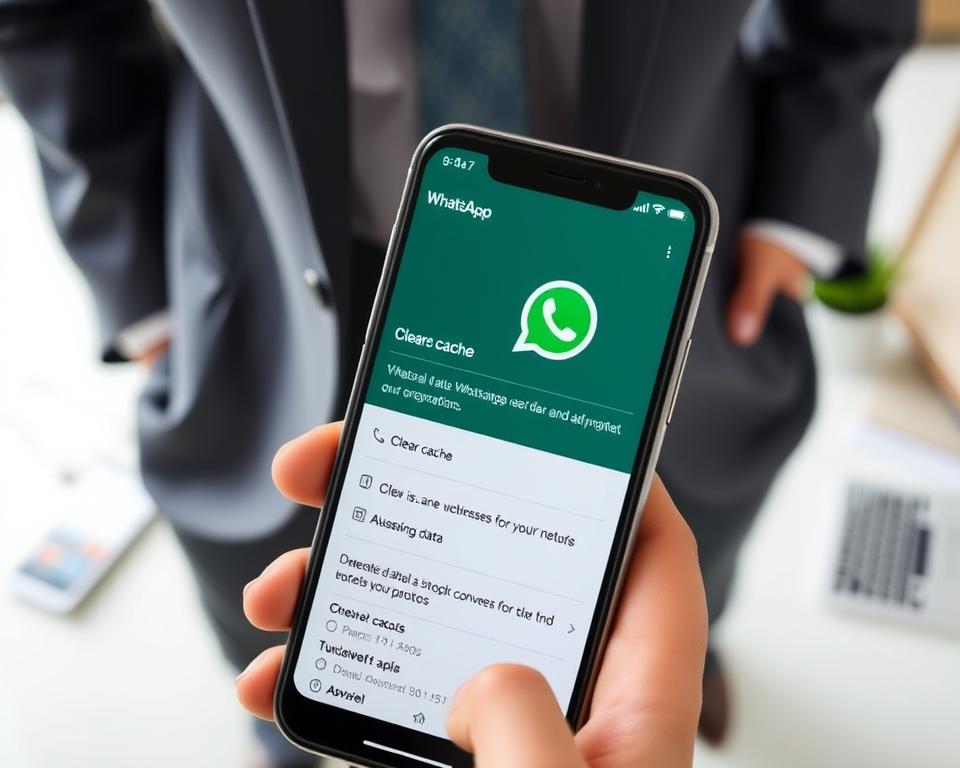
WhatsApp can remove photos and videos from a chat while keeping its text history. This can free space, but check what each cleanup option deletes before tapping it.
To clear WhatsApp cache, target app temporary files, not chat media or app data. WhatsApp storage cleanup may remove chat media, but copies saved to your phone or Google Photos may remain.
Key Takeaways
- Cache files and chat media are different.
- Removing media from a chat can leave its text history intact.
- Google Photos backups are separate from WhatsApp chat media.
- Check what a cleanup option will remove before using it.
- Back up important chats before making major changes.
Will clearing WhatsApp cache delete your photos or chats?
Clearing WhatsApp’s cache usually removes temporary files, not your WhatsApp photos and conversations. The app’s Clear data or Clear storage option is different. It can affect stored app information, so do not treat it like cache cleanup.
To clear data without deleting chats, use WhatsApp’s storage controls to remove selected large photos or videos. This WhatsApp media cleanup keeps the text history in that chat.
Clearing a conversation does not automatically delete WhatsApp media saved in Google Photos. Check where each photo is stored before removing files.

Cache, app data, photos, and chats are not the same thing
WhatsApp stores several types of information on your phone. Knowing each type can help you free space without removing things you want to keep.
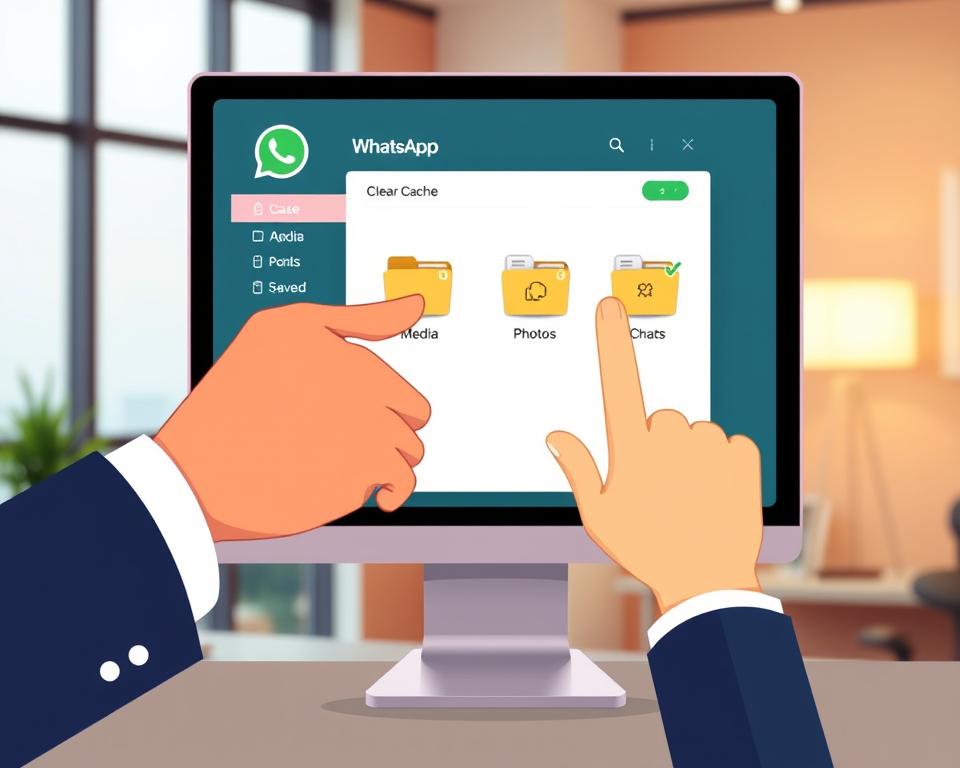
Cached files
Cache includes app temporary files that help WhatsApp load content faster. These files stay separate from chats and saved photos, so clearing cache does not delete them.
App data
WhatsApp app data includes information the app needs to work, including settings and account details. Clearing app data goes beyond clearing cache and may remove local information, so check your backup first.
Photos and conversations
WhatsApp downloaded media, such as photos and videos, stays separate from chat text. In Manage Storage, choose a chat and delete its media; the text history may remain. Photos saved to your phone or backed up to Google Photos are not automatically removed when you clear conversation media.
Clear WhatsApp cache on Android
Android lets you remove WhatsApp’s temporary files through Settings. This can help free up space on Android without removing chats or saved photos. Menu names may vary by phone model and software version.
Samsung Galaxy phones
Open Settings and tap Apps. Choose WhatsApp, tap Storage, then select Clear cache. This removes temporary files from the phone’s internal storage.
Do not choose Clear data or Clear storage. These options can reset WhatsApp and may affect information stored in the app.
Google Pixel and other Android phones
Open Settings and find Apps or App info. Select WhatsApp, tap Storage or Storage & cache, then choose Clear cache. Labels may differ across Android versions.
Choose this option to clear WhatsApp cache on Android without resetting the app. It removes temporary files, not conversations or media saved in WhatsApp.
| Phone type | Where to find WhatsApp | Option to choose |
|---|---|---|
| Samsung Galaxy | Settings > Apps > WhatsApp > Storage | Clear cache |
| Google Pixel | Settings > Apps or App info > WhatsApp > Storage | Clear cache |
| Other Android phones | Settings > Apps or App info > WhatsApp | Clear cache; menu names may vary |
Handle WhatsApp cache on an iPhone
iPhone does not offer Android’s per-app cache control. To manage the iPhone cache, you can offload WhatsApp or reinstall it. Check your backup before reinstalling.
Offload WhatsApp without deleting its documents
Offloading removes the app but keeps its documents and data on your iPhone. To offload WhatsApp on iPhone, open Settings, tap General, then iPhone Storage. Select WhatsApp, tap Offload App, and tap its icon to reinstall it later.
Reinstall WhatsApp only after confirming your backup
Before deleting WhatsApp, open Settings, tap Chats, then Chat Backup. Confirm that a recent backup is available in iCloud. iPhone backups use iCloud; WhatsApp chat backup to Google Drive applies to Android, not iPhone.
Check that your photos and chats are still available
Before deleting media, verify WhatsApp chats you want to keep. Open the photos in WhatsApp or your phone’s gallery. To check WhatsApp photo backup, review Google Photos or another backup app you use.
WhatsApp media may have a separate copy in your phone’s gallery or local storage. Clearing a WhatsApp conversation does not automatically remove copies saved in Google Photos. Confirm needed files are there, and back up important chats to help preserve WhatsApp conversations.
Review WhatsApp storage before deleting anything
Check what uses space before deleting files. WhatsApp Manage Storage lets you review large items and media by chat, so you can choose what to keep.
WhatsApp’s Manage Storage screen
Open WhatsApp and tap Settings, then Storage and data, then Manage storage. Choose a chat to review its photos, videos, and other files. Select only the items you want to delete. Use Manage storage to remove WhatsApp media, and keep anything you may need later.
Your phone’s storage settings
Phone storage settings show how much space WhatsApp uses. Menu names vary by device, so check your phone’s storage or app list to find its usage.
If you use Google Photos, Library, Utilities, and Free up space can find backed-up media and remove local copies. Don’t delete items directly from Google Photos unless you intend to remove them from your cloud library, too.
Stop unnecessary photos and videos from returning to the cache
After clearing old files, adjust WhatsApp so fewer new photos and videos download automatically. Manual downloads can help reduce app temporary files and keep your phone’s storage in check.
Automatic media downloads
Open WhatsApp and go to Settings, then Storage and data. Under Media auto-download, choose which media types can download automatically. Turn off photos and videos to review each file before saving it.
Mobile data and Wi-Fi settings
WhatsApp has separate controls for mobile data and Wi-Fi. Set each option to no media, or allow only the file types you need. These WhatsApp media download settings help you control WhatsApp downloads and avoid filling storage with files you may never open.
What to try when clearing the cache does not fix the problem
To clear WhatsApp cache safely, check for media copies saved outside the app if WhatsApp still uses too much space. This action will not remove photos saved on your phone or backed up to Google Photos.
To keep backed-up photos in the cloud and remove local copies, turn on backup for the WhatsApp folder in Google Photos:
- Tap your profile picture, then open Photos settings and Backup.
- Choose Back up device folders and switch on the WhatsApp folder.
- Open Library, tap Utilities, and select Free up space.
Review the items before removing them. Some Samsung and Xiaomi phones may ask you to confirm deletion in the Gallery app.
Deleting photos directly from Google Photos can remove cloud copies. Use Google Photos Free up space to remove backed-up phone copies.
If storage remains high, review WhatsApp’s Manage Storage screen for large files and repeated media. These steps can help troubleshoot WhatsApp storage without accidentally removing conversations or cloud backups.
Keep WhatsApp clean without risking your data
To maintain WhatsApp storage, review the Manage Storage screen and remove only photos or videos you no longer need. You can clear data without deleting chats by deleting selected media, while keeping the conversation’s text history intact.
Before removing anything, check whether important media is backed up. Clearing a WhatsApp conversation does not automatically delete its copies in Google Photos. To remove backed-up files from your phone but keep them in the cloud, use Google Photos’ Free up space option. Deleting files directly from the Photos tab may also remove the cloud copies.
Small, careful cleanups help protect WhatsApp photos and preserve chats. Check your backups first, then remove only what you’re sure you no longer need.