

A Cisco survey cited by TOTVS found 94% of organizations said consumers avoid companies failing to protect personal data. That concern also applies to everyday files. A misdirected email or shared link can expose financial records, customer details, or a business plan.
You can protect files with a password to add a security layer and limit who can open them. The right file encryption method helps keep sensitive information private. Document access control lets you decide who gets access. The best option depends on the file and where you plan to store or share it.
Key Takeaways
- Password protection adds a layer of security to sensitive files.
- Choose a method that fits the file and your device.
- Use strong passwords and store them safely.
- Check protection before sharing a file.
- Password protection cannot prevent every kind of exposure.
Choose the right way to protect your files
The best file encryption method depends on where a file will live and who needs to open it. Windows can encrypt some files and folders for the current user account. Mac Disk Utility can create a password-protected disk image. These options suit local storage but may not work well across devices.
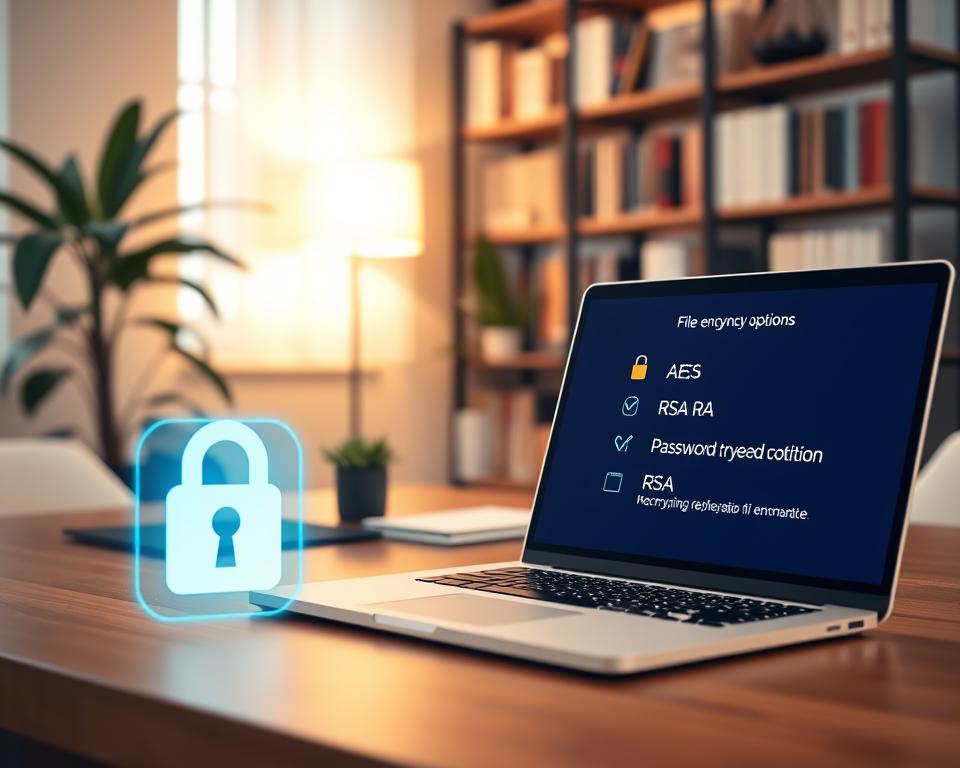
For files you plan to share, 7-Zip and WinRAR can create encrypted ZIP files that need a password to open. VeraCrypt offers another way to encrypt data. Password-protected cloud sharing can help when a file needs to stay online.
Choose a method that fits how you will use the file. A protected folder on your computer may not stay secure when you share its files. Use a separate method to protect files with a password before sending them.
Create a strong password you can still manage
Choose a long, unique file encryption password with several unrelated words. This short phrase is easier to remember and harder to guess. Avoid names, birthdays, and passwords you already use.

When you make a 7-Zip archive, select AES-256 encryption and turn on file name encryption. VeraCrypt containers also need a strong password. On a Mac, Disk Utility can suggest one when you select the key icon.
Save the password in a trusted password manager, not in a note beside the file. Windows EFS uses your Windows account password, so keep it safe. A secure record can help with protected file recovery if you forget these details later.
Password-protect Microsoft Word and Excel files
Microsoft Office can encrypt documents and spreadsheets to keep their contents private. Menus may vary by app and version, but the basic steps remain similar.
Add a password to a Word document
In Word for Windows, open the document and select File, Info, Protect Document, then Encrypt with Password. Enter your password twice and save the file. Word password protection locks the document until someone enters the password.
Encrypt an Excel workbook
Open the workbook and find its password or encryption settings in the app’s protection options. Enter and confirm a strong password, then save the workbook. Excel workbook encryption protects the spreadsheet’s contents, while file encryption adds privacy to the saved file.
Secure a PDF with a password
A password-protected PDF helps keep sensitive files away from the wrong people. Dropbox lets you password-protect a shared link, so recipients must enter it before viewing or downloading the PDF.
This protects access through the link, but it does not add a password inside the PDF. For stronger document access control, share the link only with people who need the file. Send its password through a separate channel.
PDF encryption protects the file itself, while link protection limits who can reach a shared copy. Know which protection you are using before sending the document.
Encrypt a folder on Windows with 7-Zip
7-Zip is a free Windows app that turns files or folders into password-protected archives. It provides simple file encryption for stored or shared files.
Install and open 7-Zip
Download and install 7-Zip, then open it. Browse to and select the folder you want to protect.
Create an encrypted archive
Choose Add, enter a strong password, and select 7-Zip AES-256 as the encryption method. Choose ZIP for broad compatibility, or 7z to encrypt file names, too. Encrypted ZIP files protect their contents, but ZIP format does not hide file names.
To open the archive later, select it and choose Extract, then enter your password. Keep the original folder until you confirm that the extracted files open as expected.
| Choice | What it protects | Best for |
|---|---|---|
| ZIP with AES-256 | File contents, not file names | Sharing with people who may not use 7-Zip |
| 7z with AES-256 | File contents and, if enabled, file names | Extra privacy for stored folders |
Protect files on a Mac
To protect files with a password in Notes, Pages, or Numbers, open the file and choose File > Set Password. Enter and confirm a strong password. Store it safely; you will need it to open the file.
For Mac folder encryption, use Disk Utility. Choose File > New Image > Image from Folder, select a folder, and pick AES-128 or AES-256 encryption. Choose AES-256 encryption for stronger protection.
Select Read/Write if you may add or remove files later. Save the disk image, set and verify its password, then open the resulting .dmg file to access its contents. You can share the encrypted image, but the extra steps may feel less convenient.
| Mac method | Best for | Key detail |
|---|---|---|
| Set Password in an app | Notes, Pages, or Numbers files | Set a password from the File menu |
| Disk Utility image | A folder of files | Choose encryption and Read/Write format |
Secure files on an iPhone or iPad
iOS has no built-in way to password-protect a folder. For iPhone file protection, choose a trusted app with encrypted storage. Review its security features and privacy details before adding sensitive files.
The same limit applies to iPad folder security. Cloud storage can help you protect files with a password before sharing. Some services offer password-protected links, letting you control who opens each file.
| Option | How it helps | What to check |
|---|---|---|
| Third-party app | Stores files in a protected space | Look for encryption and a clear privacy policy |
| Cloud storage link | Lets you share files with access controls | Set a link password when available and share it separately |
Protect files before sharing them online
Dropbox supports password-protected file sharing through shared links. A shared link makes a file easy to reach, so set clear limits before sending it. In Dropbox, hover over a file, select Share, and open Settings.
Choose viewing or editing, turn on Require password, set a password, and save. Recipients must enter it to view or download the file.
Dropbox settings limit access and add expiration dates. For stronger account security, turn on two-factor verification, a form of multifactor authentication. Send the link password through a separate channel, such as a text message, instead of the same email.
Proton Drive offers password-protected folder sharing on its Free plan. Its apps use end-to-end encryption, so only the sender and recipient can view shared contents. Check service plans and sharing rules; some may require both people to use the same service or a paid plan.
These controls support document access control, but they do not replace a strong account password.
| Service | Sharing protection | What to check |
|---|---|---|
| Dropbox | Password-protected links, link permissions, and expiration dates | Recipients need the link password to view or download the file |
| Proton Drive | Password-protected folder sharing and end-to-end encryption | Confirm plan limits and whether recipients need an account |
Store and recover your file passwords safely
Save passwords for encrypted files and archives in a trusted password manager. Store your Windows account password there, too. Windows EFS uses that account to decrypt protected files.
Windows may ask you to export a Windows EFS certificate after you set up encryption. Follow the on-screen steps, then store the certificate in a secure backup location. It may help with protected file recovery if you move to another computer.
Keep the password and certificate where you can reach them if your device is lost or replaced. No single recovery method works for every forgotten file or archive password, so save them before you need them.
| What to save | Why it matters | Safe storage |
|---|---|---|
| File or archive password | Needed to open the protected item | Trusted password manager |
| Windows account password | EFS uses your Windows account to decrypt files | Password manager |
| Windows EFS certificate | Can support access after a system change | Secure backup location |
Test whether the password protection works
Open the file or archive on the device you plan to use. To test file password protection, close it, reopen it, and enter the password. Confirm it stays locked until you enter the correct password.
The prompt depends on the protection method. A Mac encrypted disk image asks for its password when opened. A 7-Zip or WinRAR archive asks for one when you open or extract its contents. For encrypted archive access, confirm files open only after you enter the correct password.
Some tools work differently. Dropbox asks link recipients for the link password before they can view or download a file. Windows EFS relies on the authorized Windows account and decrypts files automatically for that user.
It may not show a separate prompt each time. These checks help confirm how your file security works.
| Protection method | What to check |
|---|---|
| Mac encrypted disk image | Reopen it and confirm a password is required. |
| 7-Zip or WinRAR archive | Open or extract it, and confirm the password blocks access. |
| Dropbox password link | Open the link and confirm the password is required to view or download. |
| Windows EFS | Sign in with the authorized account and confirm the file opens; EFS uses the account, not a new prompt each time. |
Know what file passwords cannot protect against
A folder password may not stay with shared files, so recipients may open them without that protection. Windows EFS connects to one Windows account and computer. Anyone who accesses that account may reach protected files, making EFS poor for sharing across devices.
These file security limits make account and sharing habits important. Check link settings and email addresses before sending, because compromised devices can expose password-protected files. Strong device account security and multifactor authentication add layers; Dropbox offers two-factor authentication for broader account protection.
| Risk | Why it matters | Safer practice |
|---|---|---|
| Shared folder contents | Local protection may not follow files to another person or device. | Encrypt files for sharing and confirm the recipient can open them. |
| Account access | Someone using your Windows account may reach EFS-protected files. | Lock your device and secure your account with multifactor authentication. |
| Sharing mistakes | A wrong email address or open link can expose a file. | Review recipients and link access before sending. |
Use the simplest secure method for each file going forward
Choose a method that fits how you use the file. Windows tools and Mac apps support file encryption for some files in place. For local storage, protect files with a password using 7-Zip, WinRAR, VeraCrypt, or an encrypted Mac disk image.
For secure file sharing, use tools that let you control access. Dropbox offers link passwords, permissions, and expiration dates. Proton Drive supports password-protected folder sharing with end-to-end encryption.
A password is one layer of safety, not a full defense. Keep your devices updated, use antivirus software and a firewall, and consider a VPN on public Wi-Fi. If you manage a team, teach staff how to spot unsafe links and handle sensitive files.