


Your phone can guide you with Google Maps after its internet connection drops. However, your full driving route must fit inside the area you saved earlier.
Using Google Maps offline helps when you travel through limited mobile coverage or want to save data. Offline maps provide driving directions, but not live traffic or alternate routes.
Key Takeaways
- Save the map area before you lose internet access.
- Keep your entire driving route within the downloaded area.
- Expect no live traffic or alternate routes offline.
- Offline maps may not be offered in every region.
Can Google Maps Navigate Without a Data Connection?
Yes. Download a map before your trip, and Google Maps can guide you when your connection is slow or unavailable. Offline navigation works only when your full driving route fits within the saved map area.
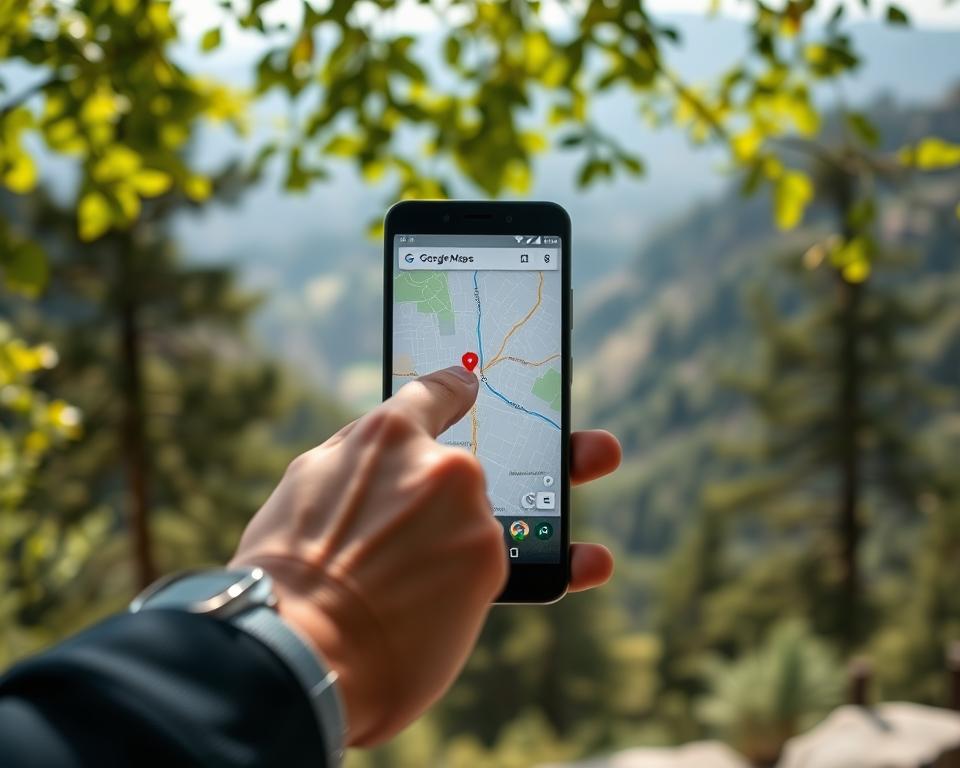
Saved maps support driving routes, including turn-by-turn directions without internet. Offline maps do not support public transit, cycling, or walking directions. Without a connection, you will not receive live traffic updates or alternate driving routes.
Check These Requirements Before You Go Offline
Download your map with a reliable internet connection. Confirm offline map availability before entering an area with limited mobile coverage.
Maps may not be available in some countries or regions. Contract rules, language support, or local address formats may limit downloads.
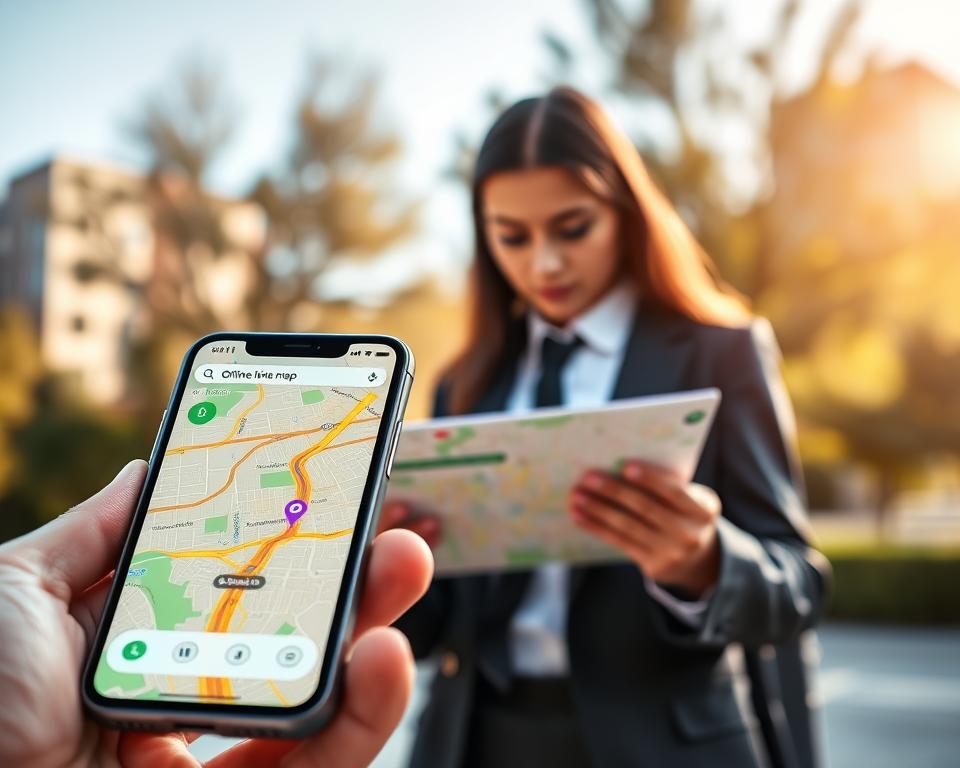
On Android, Google Maps saves offline maps to your phone storage by default. Android 6.0 and later can save maps to a portable SD card. If you change the storage location, download the map again.
Download a Google Maps Area on iPhone or Android
Save the map while online, so you can download maps to your phone before a trip. Search for a place or choose the area yourself.
Save an Offline Map on an iPhone
Open Google Maps, tap your profile picture, and choose Offline maps. Tap Select your own map, adjust the box, and tap Download to save it. Google Maps offline on iPhone works on iPhone and iPad.
Save an Offline Map on an Android Phone
For Google Maps offline on Android, open Google Maps, search for a place, and tap its place card. Swipe the card, tap More, choose Download offline map, and tap Download, then tap your profile picture. Choose Offline maps, tap Select your own map, adjust it, and tap Download.
| Phone | Quick download | Choose an area |
|---|---|---|
| iPhone or iPad | Search for a place and use its offline map option, when shown. | Profile picture → Offline maps → Select your own map → Download. |
| Android | Search for a place → More → Download offline map → Download. | Profile picture → Offline maps → Select your own map → Download. |
Pick the Smallest Map Area That Covers Your Trip
Choose a downloaded map area that covers every stop and road on your trip. Your full route must fit inside the saved map for offline driving directions. Google Maps lets you adjust the area before downloading it.
For long road trip routes, check the map edges carefully. A small gap can leave part of the drive without offline directions.
Maps use device storage, so skip areas you do not need. On Android 6.0 or later, you can save maps to an SD card set up as portable storage. If you switch storage locations, download your maps again.
Find and Manage Your Saved Offline Maps
To manage offline maps on Android, tap your profile picture or initial, then choose Offline maps. Your saved areas appear there, including options for new downloads.
Select a saved map and tap Edit to give it a clear name. Save the change, or choose Delete to remove an unneeded map. These tools help you rename or delete maps as your plans change.
Offline maps can use your phone’s storage or an SD card. If you change the downloaded map storage setting, download your maps again.
Set Up Your Route Before You Lose Internet
Before you plan a road trip, download the map area while you have a connection. Check that its map coverage includes every part of your route.
Google Maps guides you offline only when the full route fits inside the saved area. For easier offline route planning, check the route and map boundaries before leaving.
Look under Recommended maps for areas that may suit future trips. Google says these suggestions may use trip details from Gmail, Google Travel, and other sources.
Use Turn-by-Turn Driving Directions Offline
After downloading your map, open Google Maps and enter your destination. Select Directions, choose driving, and start your trip. You can get turn-by-turn driving directions without internet when the route stays inside your saved map area.
Offline driving routes help when your connection is slow or unavailable. Google Maps cannot show live traffic or suggest alternate routes offline.
For road trip navigation, check your route before leaving. Make sure your saved map covers the entire drive.
Know Which Google Maps Features Stop Working Offline
Saved maps provide basic navigation, but some offline map features need an internet connection. Check what may be missing before starting your trip.
Live Traffic and Alternate Routes
Google Maps cannot show real-time traffic or suggest alternate routes without internet access. A saved route may miss delays or road changes, so allow extra time.
Transit, Walking, and Cycling Directions
Google Maps does not provide offline transit, walking, or cycling directions. Offline transit directions are unavailable, so download driving routes before losing service if you plan to drive.
Business Details and Real-Time Updates
Business information and other live updates may be unavailable without a connection. Do not rely on them during your trip.
Organic Maps offers offline search and navigation with OpenStreetMap data, refreshed every two weeks. Its public transit schedules and live routing remain in development.
Keep Mobile Data From Sneaking Back On
To manage map downloads, tap your profile picture or initial in Google Maps. Open Settings, choose Offline maps, and check Download preferences. Choose an option that fits your data plan.
Downloading offline maps does not turn off cellular data for Google Maps or other apps. To save mobile data, also check your phone’s cellular settings. You can use mobile data in other apps while your saved map guides navigation.
Update Offline Maps Before They Expire
Check the expiration date for downloaded maps before your trip. Google Maps may refresh a saved area within 15 days of expiration when your phone connects to Wi-Fi. Turn on automatic map updates in Offline maps settings to keep your areas current.
To update offline maps yourself, open Offline maps and select an area that has expired or may expire soon. Then tap Update. Google Maps may also send an “Update offline maps” notification.
Fix Missing Maps, Wrong Routes, and Download Errors
If a map is missing or a route looks wrong, check storage, updates, and your GPS signal. These checks support offline location troubleshooting before you travel again.
Free Up Storage for a New Map
Google Maps saves offline maps to internal storage on Android by default. Open Offline maps and delete maps you no longer need to free device storage.
On Android 6.0 or later, you can choose an SD card set up as portable storage. Changing the storage location means downloading your maps again.
Refresh an Expired or Outdated Map
In Offline maps, select the map and tap Update. You can also tap the update notification. To refresh an expired map, connect to the internet and ensure enough free space.
Check GPS When Your Location Stops Updating
Offline maps do not provide live traffic, but your phone’s GPS can still show your location. Check Google Maps location access, then move outdoors or away from tall buildings.
If your position still does not update, close and reopen Google Maps, then check GPS again. A saved map supports navigation, but cannot fix a weak GPS signal.
Wrap Up Your Trip With Google Maps Offline Navigation
Before leaving, use Google Maps offline to download the area you need while internet access is available. Check that the map covers your full driving route, and update it before it expires.
Offline road trip navigation helps when you reach limited mobile coverage, but it has limits. You will not get live traffic or alternate routes, and public transit, walking, and cycling directions will not work offline.
Another option is Organic Maps, a separate app based on OpenStreetMap. It offers offline search and navigation, downloadable maps, and map data updates every two weeks.