

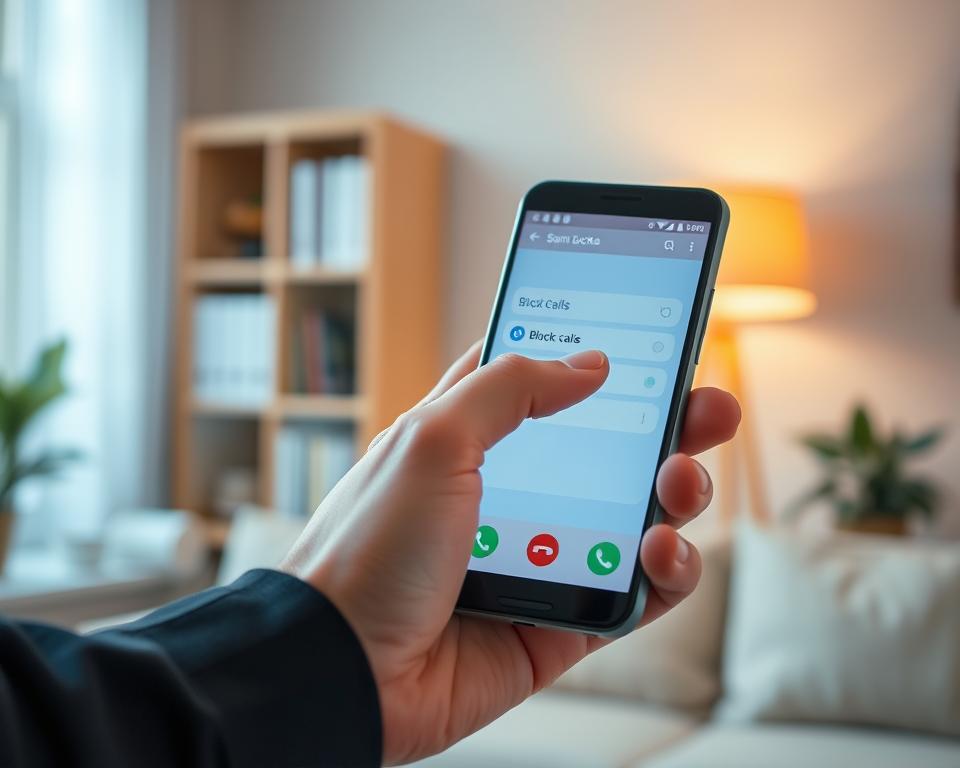
Americans received about 55.4 billion robocalls in 2023, according to YouMail’s Robocall Index. Many unwanted calls can be flagged or blocked on your Android phone.
The Google Phone app can show caller ID details for people and businesses outside your contacts. Its unwanted call filter can flag suspected spam, but it may miss some calls. Learn how to block spam calls on Android and manage calls that still get through.
Key Takeaways
- Android’s Google Phone app can flag suspected spam.
- Caller ID may identify businesses and people outside your contacts.
- You can block and report numbers in the app.
- Spam detection may miss some unwanted calls.
- Blocking settings can help you manage calls that get through.
Turn on spam protection in the Google Phone app
Open the Google Phone app, tap More options, then choose Settings and Caller ID and spam. Turn on See caller and spam ID for caller ID for unknown callers and possible spam warnings.
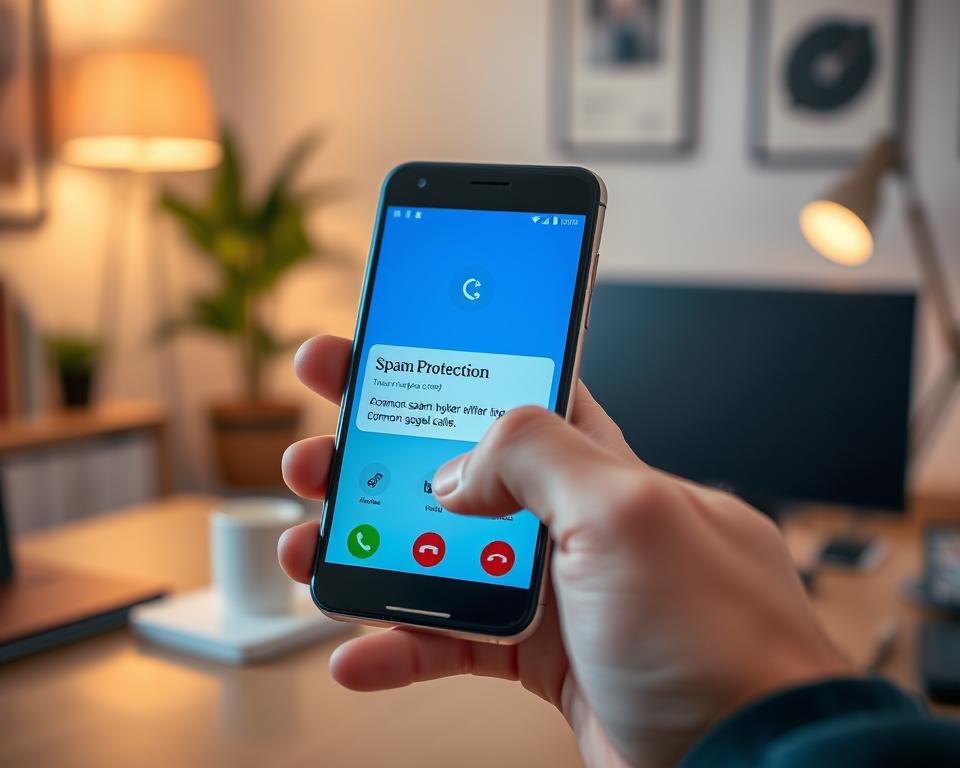
For spam call filtering, turn on Filter spam calls. Filtered calls won’t ring or send missed-call or voicemail alerts. You can still find them in call history and check any voicemail they leave.
| Setting | What it does |
|---|---|
| See caller and spam ID | Shows caller details and possible spam warnings. |
| Filter spam calls | Silences calls marked as spam while keeping them in call history. |
These steps require Android 6.0 or later. On Pixel 6 and newer, filtering is called Basic protection. On Pixel 5 and older, look for Silently decline under Spam calls.
Phones with automatic Call Screen may not show the Filter spam calls option.
Use Samsung Smart Call to identify and block spam
On many Samsung Galaxy phones, Smart Call can label suspected spam and help block unwanted calls. Open the Samsung Phone app, tap the three-dot menu, and choose Settings. Find Caller ID and spam protection, then turn it on.
Menu names and options vary by model, software version, or carrier. If you see a setting to block spam and scam calls, choose whether to block all suspected spam or only high-risk calls. This adds protection against phone scams.
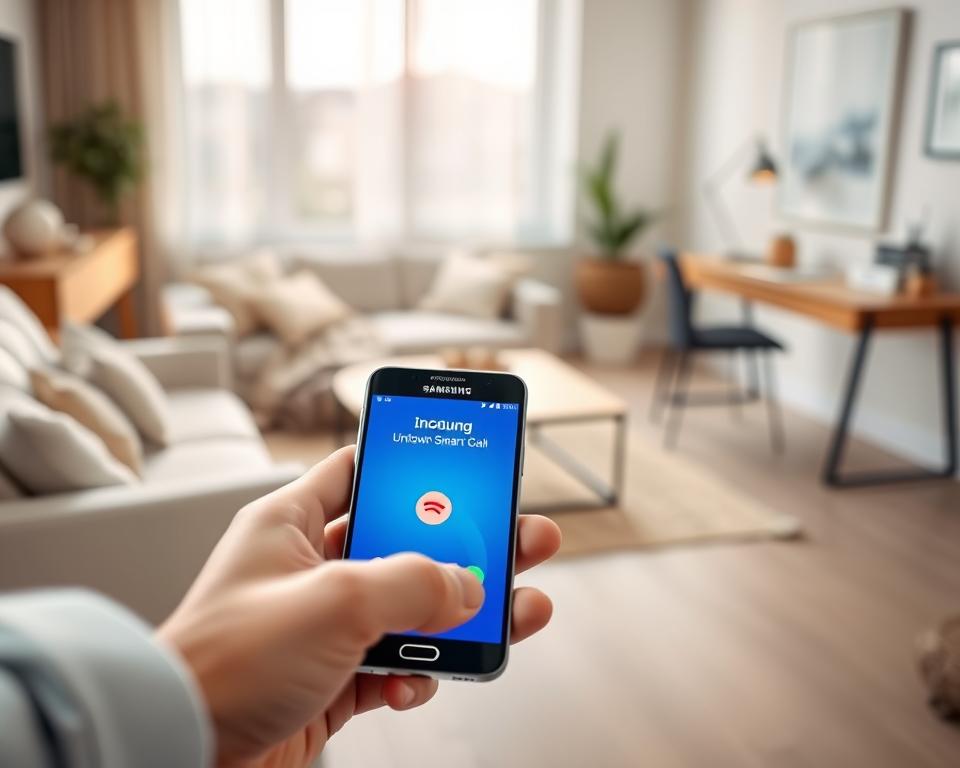
Smart Call can show details for numbers outside your contacts and flag suspected spam, supporting unknown caller identification. Treat an unfamiliar label as a warning, not proof of who is calling. Avoid sharing passwords, payment details, or verification codes with an unexpected caller.
| Smart Call feature | What it does |
|---|---|
| Caller ID | May display information about some callers who are not saved in your contacts. |
| Spam warning | Flags calls that may be unwanted or fraudulent. |
| Call blocking | Can block suspected spam based on the options available on your phone. |
Block a number from your recent calls
In the Google Phone app, open Home or Recent calls. Tap the call you want to stop, then choose Block/Report spam to block a spam caller and report the number.
You can also press and hold the call, then tap Block/Report spam. Future calls from that number will be blocked. The number will appear on your number block list.
Silence calls from unknown numbers
Google Phone may show details about some people and businesses outside your contacts. This unknown caller identification helps you choose whether to answer, but it cannot silence every unfamiliar number.
Google Phone’s spam filter can block calls it marks as spam. Filtered calls remain in your call history, and you can still check voicemail. This unwanted call filtering cuts interruptions without hiding these records.
Report spam calls to improve future protection
In Google Phone, open Recent calls and tap the number you want to flag. Choose Block/Report spam to block it and send a report. This step supports spam call reporting and helps stop repeat calls from that number.
If a trusted caller is labeled as spam, open the call in Recent calls and tap Not spam. Future calls from that number will not be marked as spam. This corrects mistakes while supporting reporting fraudulent calls from numbers that keep bothering you.
Google Phone may ask for feedback about business caller ID details. The feedback does not include personal information. If you say a number is not a business, that information is not sent to Google.
| Action | What it does |
|---|---|
| Block/Report spam | Blocks the number and reports the caller. |
| Not spam | Stops future calls from that number being labeled as spam. |
| Business caller ID feedback | Shares caller ID feedback without personal information; a “not a business” response is not sent to Google. |
Screen unknown callers with Google Call Screen
On supported phones, Google Call Screen helps you screen unknown callers before answering. Availability and options vary by device and region, so check the Phone app.
Google’s spoof-call alerts are a separate feature. They require Android 12 or later, Google Phone, Contacts, and Messages apps, plus RCS turned on in Google Messages. Active alerts may warn when callers hide identities or fake contacts, adding protection against phone scams.
Activate your carrier’s spam-blocking service
Your wireless carrier may offer spam filters that flag or block suspicious calls before your phone rings. Ask if carrier spam blocking comes with your plan or costs extra. Features and setup steps vary by provider.
These tools may reduce automatic telemarketing calls, but no filter catches every unwanted call. Vivo Anti Spam serves customers in Brazil, so it is not a U.S. carrier option.
Choose a reputable call-blocking app when built-in tools fall short
Android’s built-in blocking tools may miss some unwanted calls. If this happens often, consider a call-blocking app such as Truecaller. Check its current ratings, privacy details, and terms before installing it.
An unwanted call filter may reduce interruptions, but no tool can promise to catch every spam call. Review the app’s settings, and ensure important calls can still reach you.
| Option | What to consider |
|---|---|
| Android’s built-in tools | Easy to access, but some unwanted calls may get through. |
| Third-party call-blocking app | May offer another layer of screening; review its privacy terms and ratings first. |
Know what to do when a spam call gets through
Some robocalls ring for a few seconds, then disconnect, while others use spoofed numbers that look familiar. Google Phone may label calls “Suspected spam” or “Spam.” You can answer, block, or report the number.
For better protection against phone scams, treat unexpected requests for money or personal details with care. Hang up if anything feels wrong, then contact the person or company through a trusted number.
Google’s spoof-call alerts can flag callers who hide their identity or pretend to be your contacts. This feature requires Android 12, the Google Phone app, and RCS. Automatic telemarketing calls may still get through, so check caller ID before you pick up.
Unblock a number or change your call-blocking settings
To adjust spam call filter settings, open the Google Phone app. Tap More options, choose Settings, then select Caller ID and spam. Turn See caller and spam ID or Filter spam calls on or off.
If a trusted caller is marked as spam, open the call in Recent calls and tap Not spam. To let a blocked caller reach you again, find the call entry and tap Unblock. Review your number block list to see other blocked callers.
These spam filters do not control whether your phone number appears when you call someone.
Keep important calls reachable after blocking spam
Spam filters can block calls you want to receive. Save important numbers in your contacts, and check recent calls for new numbers. This may help you spot a filtered call.
Google may use details from numbers not saved in your contacts. It may provide caller ID for unknown callers or flag spam. Google says it does not collect numbers from your contacts; review Phone app permissions and spam settings to understand features.
Filtered spam calls may still appear in your call history, and you can check voicemail. You may not get a missed-call or voicemail alert for a filtered call. When waiting to hear back, check both.