

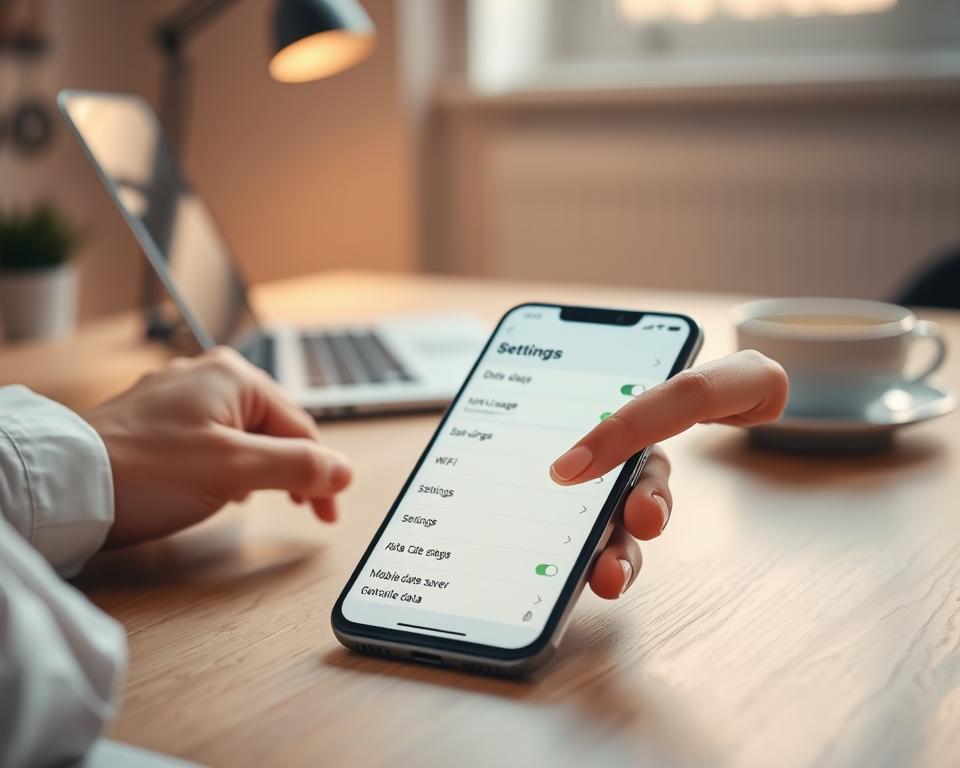
One hour of HD video can use up to 3 GB of data on Netflix. That can quickly strain a monthly plan, especially when you stream YouTube, Instagram, or TikTok away from Wi-Fi.
Music, games, video calls, and web browsing also increase data use. These mobile data saving tips can help you save mobile data on your phone before your billing cycle ends. Check which activities use the most data, then change settings and increase Wi-Fi use when available.
Key Takeaways
- HD video can use several gigabytes of data in an hour.
- Social media, music, games, and calls can add to your usage.
- Check your data use to spot the biggest drains.
- Use Wi-Fi when it’s available to reduce cellular data use.
- Small settings changes can help your plan last longer.
Check Which Apps Use the Most Mobile Data
Your phone’s settings show total mobile data consumption and each app’s use. On Android, open Settings, then Network & Internet or Connections, and tap Data usage. Menu names may vary by phone.
On iPhone, open Settings and tap Cellular. Scroll to view app data usage for the current period. Streaming video and music, social media, and online games often use the most data.
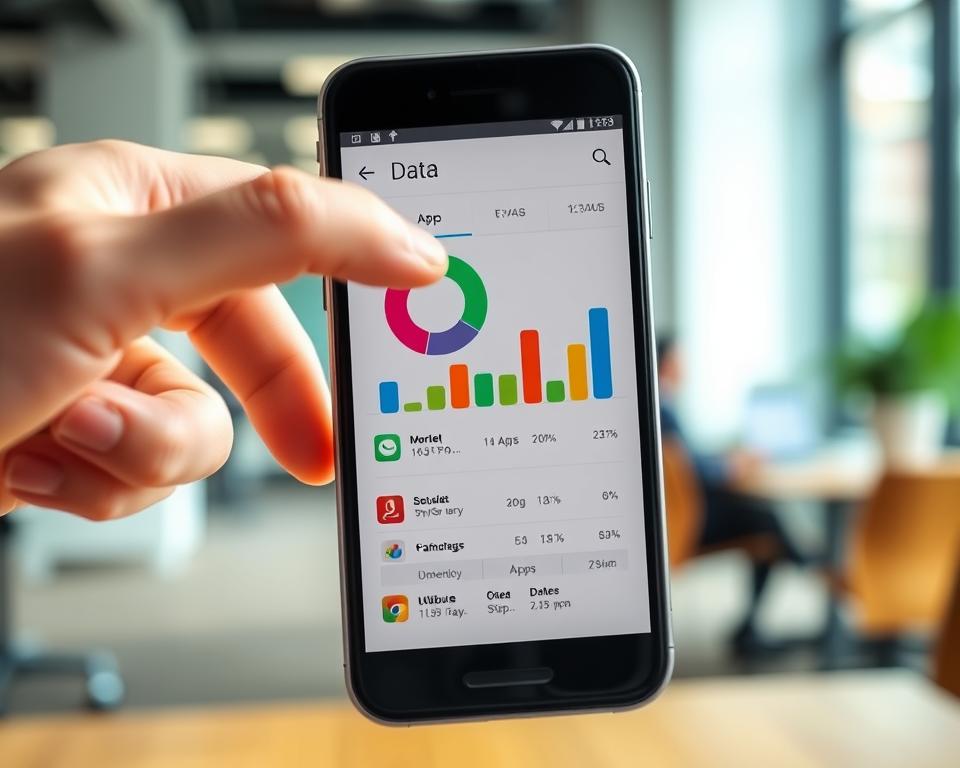
Built-in internet usage tracking helps you spot apps that use large amounts of data. Check the list to decide which activities need limits.
Set a Data Warning and Usage Limit
Set a mobile data warning below your monthly allowance. This gives you time to adjust before you run out. Data usage alerts can show rising use and help spot apps using your plan.
Some phones can pause mobile data after you reach a set amount. This mobile data limit may not work on every device or plan. Check your phone’s settings or carrier app.
Remember tethering, too. A laptop or tablet can use data quickly while streaming video or downloading large files.
| Setting | What it does | When to use it |
|---|---|---|
| Data warning | Alerts you as usage nears a chosen amount | When you want time to cut back |
| Data limit | May turn off mobile data at a chosen amount | When you need a firm cap on use |
Turn On Your Phone’s Built-In Data Saver
Your phone’s built-in data saver can cut mobile data use by limiting background activity away from Wi-Fi. It takes only a moment to turn on.
Enable Low Data Mode on iPhone
Open Settings, tap Cellular, and choose Cellular Data Options. Turn on Low Data Mode to reduce background data use on your iPhone.
Enable Data Saver on Android
On Android, open Settings, tap Network & Internet, and choose Data Saver. Turn it on to limit background data for apps. Menu names may vary by phone model and Android version.
Block Background Data for Heavy-Use Apps
Some apps use mobile data when you are not using them. They may sync files, refresh feeds, or send data in the background. Social media apps can load videos, photos, stories, and ads before you open them.
On Android, find background data controls in an app’s settings or under data usage. On iPhone, open Settings, tap Cellular, and turn off cellular access for apps using too much data. A background data limit can make your usage easier to manage.
Restricting background app data may delay updates or notifications until you open an app. Choose the apps that matter most, and use mobile data control to limit the rest.
Stop Automatic Updates and Downloads on Cellular Data
Large app updates can use cellular data quickly. In Google Play, open Settings, choose Network preferences, and set automatic app updates to Wi-Fi only. On iPhone, open Settings, choose App Store, and turn off cellular data for app updates.
Messaging apps may download photos, videos, and audio without asking. Set media auto-downloads in WhatsApp or Telegram to Wi-Fi only, or download each file when needed. These changes help save cellular data for maps, calls, and other tasks.
| Phone or app | Setting to change | What it does |
|---|---|---|
| Google Play Store | Auto-update apps over Wi-Fi only | Keeps app updates off cellular data |
| iPhone App Store | Turn off cellular data for app updates | Prevents updates from using mobile data |
| WhatsApp or Telegram | Set media downloads to Wi-Fi or manual | Stops photos, videos, and audio from downloading on their own |
Lower Video and Music Streaming Quality
High-quality video can use mobile data quickly. On YouTube, Netflix, and similar apps, choose a lower resolution over cellular data. Low-resolution video playback is usually clear enough for clips or catching up on a show.
Many music apps offer a music data saver setting. Turn it on to stream with less data, and check playback settings for available options. Some services report savings of up to 75% without a noticeable change in sound quality.
When you approach your monthly limit, lower streaming quality can help data last longer. Switch back to higher quality when you use Wi-Fi.
Disable Autoplay in Social Media Apps
Instagram, Facebook, and X play videos as you scroll. Social media autoplay uses mobile data, even when you do not tap a video. Change each app’s settings to stop video autoplay and support mobile data saving.
On Instagram, open Settings, Account, and Mobile Data Use. Turn on the reduced data setting. Facebook’s Data Saver settings can limit video playback to Wi-Fi.
On X, go to Settings and privacy, Data usage, and Video autoplay. Select Never to prevent videos from starting as you browse.
Limit Photo and Video Backup Over Mobile Data
Photo and video uploads can use a lot of data, especially when clips are large. Set cellular photo backup to run only on Wi-Fi to protect your monthly allowance.
On iPhone, open Settings, tap your name, then tap iCloud. Review which apps can sync, and check Photos for cellular upload options. Turn off mobile data for backups that can wait for Wi-Fi.
On Android, open Settings and check Accounts or Passwords & accounts for automatic sync. In Google Photos, turn off backup over mobile data. These cloud sync settings help prevent large uploads from using your plan in the background.
A background data limit gives you another layer of control. Menu names may vary by phone, so look for mobile data, cellular data, or backup options.
| Device | Where to check | Setting to review |
|---|---|---|
| iPhone | Settings, your name, and iCloud | Choose which apps sync; check Photos for cellular upload options |
| Android | Settings, Accounts or Passwords & accounts | Adjust automatic account sync and Google Photos mobile data backup |
| Both | Wi-Fi and mobile data settings | Allow photo and video backups over Wi-Fi, not cellular data |
Save Maps, Music, and Videos for Offline Use
Before you leave home, download over Wi-Fi music, maps, and videos. Spotify, YouTube, and Netflix let you save some content for offline use, depending on your plan and the title.
Offline music and video can keep a commute or flight entertaining without using mobile data. Check that your downloads are ready before you go.
In Google Maps, download the area you need for offline navigation. Offline maps can help when traveling through places with weak cell service.
Reduce Data Use While Browsing and Video Calling
Web pages can use lots of data when they load large images, videos, and ads. Turn on web page compression if your browser offers it. This feature shrinks page content before it loads.
Use Wi-Fi for browsing and video calls when possible. On public networks, choose secure public Wi-Fi and avoid sensitive accounts on open connections.
Video calls can use more data than voice calls. Turn off your camera when video is not needed, or choose audio-only calls.
| Activity | Simple way to use less data |
|---|---|
| Web browsing | Enable web page compression and limit pages with large images or video. |
| Video calls | Turn off the camera when you do not need to share video. |
| Voice calls | Choose audio-only calls when video is not important. |
| Public Wi-Fi | Use a secure public Wi-Fi network and avoid open connections for sensitive tasks. |
Check Your Usage After Changing the Settings
Review your mobile data settings every few days after making changes. Internet usage tracking can show whether new settings work and which apps still use the most data.
On Android, open Settings and look under Network & Internet or Connections for Data usage. On iPhone, open Settings, tap Cellular, and review the total and app-by-app breakdown. Menu names can vary by phone model.
Make a quick data consumption check before your billing cycle resets. When trusted Wi-Fi is available at home or work, turn off cellular data if you do not need it. You can do same at night, while streaming over Wi-Fi, during focus time, or in places with a weak signal.
| Phone | Where to check | What to review |
|---|---|---|
| Android | Settings, then Network & Internet or Connections | Data usage and apps with the highest totals |
| iPhone | Settings, then Cellular | Overall usage and each app’s data total |
Conclusion
You can save mobile data on your phone by checking which apps use the most and limiting background activity. Set updates and photo backups on Wi-Fi, lower streaming quality, and download maps, music, or videos before leaving.
Keep an eye on your usage as you make changes. Text messages usually use little data, but video calls, long audio messages, and automatic media downloads can add up. Tethering can also drain your allowance fast if other devices stream or download large files.
These simple steps give you more mobile data control and can help your monthly data plan last longer. If your normal use still exceeds your allowance, consider whether a plan with more data would be a better fit.